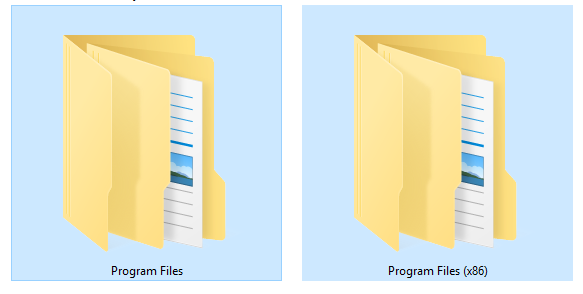

If you’re navigating a 64-bit Windows PC, you may have noticed two Program Files directories: one labeled Program Files and another that is often referred to as program files x86. The latter houses 32-bit applications that Windows still supports, even as most new software targets 64-bit architectures. Understanding where software lives on your drive helps you troubleshoot, uninstall, or move programs without breaking dependencies. In many setups, the folder path looks like C:\Program Files (x86)\… but the underlying concept goes deeper than the label. The name ‘program files x86’ reflects the historical split between 32- and 64-bit code, a distinction that can affect compatibility, performance, and security.
Why the split exists is simple: 32-bit software uses a different set of system libraries than 64-bit software. Keeping them separate helps Windows route calls to the right version of a DLL, reduces conflicts, and keeps the system stable. For users, this means that some installers place files in Program Files (x86) and others in Program Files. If you are an IT professional, you may also encounter environments where software still ships in both folders, depending on the vendor, the installer technology, and the target CPU. When you install a new program, check its installer notes to determine whether it should go into Program Files or Program Files (x86) and whether shortcuts and registry entries are created with the correct paths.
Common Scenarios Involving program files x86
Many users encounter the Program Files (x86) folder when installing or troubleshooting software. Here are a few typical scenarios and how to handle them safely:
- If an installer refuses to create shortcuts or register components, run it as an administrator and review any error messages.
- When reclaiming disk space, use the built-in uninstaller first, then reinstall only where needed to avoid leaving orphaned files or DLLs behind.
- If a 32-bit program stops launching after a Windows update, reinstall the related 32-bit runtime libraries or Microsoft Visual C++ redistributables that the app depends on.
- Before major cleanups, document which programs live in program files x86 so you can restore if something breaks.
Maintenance and cleanup tips: regularly reviewing installed programs helps you reclaim space and avoid stale shortcuts. If you need to relocate a program, many vendors provide a portable version or a proper uninstaller. Do not manually move files inside the folders, as the registry and service configurations may break. Instead, use the Programs and Features control panel (or Settings in Windows 10/11) to uninstall, then reinstall in the desired directory. For developers packaging installers, consider multi-architecture installers that place components in the appropriate folder automatically. This reduces confusion, supports proper DLL loading, and minimizes user error.
Security and performance considerations: the contents of Program Files and Program Files (x86) typically have restricted permissions. Running unknown executables from either folder is risky, and admin prompts help prevent malware from silently altering critical software paths. Keeping the system updated, enabling tamper protection, and using a reputable antivirus adds a layer of defense. If you troubleshoot legacy software, it may help to enable compatibility mode or run as an administrator during first-time setup, but always verify the source of the installer and its digital signature.
Final notes for users and admins: label familiarity matters. The names reveal how Windows organizes software by architecture, not by feature. Understanding the distinction can save time when you install, remove, or troubleshoot apps. As software delivery evolves, some developers publish universal installers that adapt at install time, while others maintain separate 32-bit and 64-bit packages. Being aware of where these programs live makes system maintenance smoother and reduces misconfigured paths down the line. For more guided insights into Windows management and software architecture, visit the Sm Magazine Go homepage.